
This article will explain you about the general settings within Zoho Desk which is common to all departments.
| Zoho Knowledge Transfer | |
| Number of licences | 350 |
| Number of Active Users | 247 |
| Light Agents | 50 |
| Active Light agents | 13 |
| Departments in Desk | Owner |
| Product Support | Mubeen |
| OLX | Mubeen |
| Escalations | Mubeen |
| Developer Tickets | Mubeen |
| Business Ops | Mamata |
| Billings Ops | Pratibha |
| Renewal | Pratibha |
| Order Ops | Pratibha |
| Subscriptions | Pratibha |
| Customer Success | Nilesh |
| Publisher Portal | Mubeen |
| General Confgurations |
| Go to Web app > Settings > Channels : |
| Email — > |
Here is where the From email address and Support email address is configured. Once you configure the support email address, we will have to share the details to our IT team and request them to enable the forwarding rule from Outlook to capture the emails to tickets. DKIM settings are configured here as well. |
——————————————————————————————————————————– Help Center — > |
This is basically a feature which will give access to a third party user to view the status of the tickets which was raised by them. In our scenario, we are currently using this feature within PS/CS team. They raise the developer and billings tickets from here and check the status.
Help Center Portal Link (sign up/ log in) – https://desk.zoho.in/portal/leadsquaredmarketxpander/
URL: https://desk.zoho.in/support/leadsquaredmarketxpander/ShowHomePage.do#setup/channels/helpcenter
URL: https://desk.zoho.in/support/leadsquaredmarketxpander/ShowHomePage.do#setup/channels/helpcenter
URL which will help us understand the number of users in the help portal is from here.
https://desk.zoho.in/support/leadsquaredmarketxpander/ShowHomePage.do#setup/channels/-1/users
Steps to be followed in Helpcenter sign up.
– When we provide the Helpcenter portal link mentioned above to a person, they can click on sign up option and sign up to the portal.
– Once signed up, the CEO- administrator will receive an email regarding the request/ user can also ping the Zoho POC.
https://desk.zoho.in/support/leadsquaredmarketxpander/ShowHomePage.do#setup/channels/-1/users
Steps to be followed in Helpcenter sign up.
– When we provide the Helpcenter portal link mentioned above to a person, they can click on sign up option and sign up to the portal.
– Once signed up, the CEO- administrator will receive an email regarding the request/ user can also ping the Zoho POC.
– Go to this URL- https://desk.zoho.in/support/leadsquaredmarketxpander/ShowHomePage.do#setup/channels/-1/users
– click pending moderation and then accept the invitation.
– click pending moderation and then accept the invitation.
– When the invitation is accepted, the user will get an email and they can proceed further with setting the password and create/ access the status of tickets.
– You can also deactivate the user from here.
– You can also deactivate the user from here.
There is no other options that we use apart from the above within Help Center.
——————————————————————————————————————————-
Chat — >
This feature enables the Zoho Sales IQ chat to be automatically integrated with Desk.
https://desk.zoho.in/support/leadsquaredmarketxpander/ShowHomePage.do#setup/channels/all/chatsettings
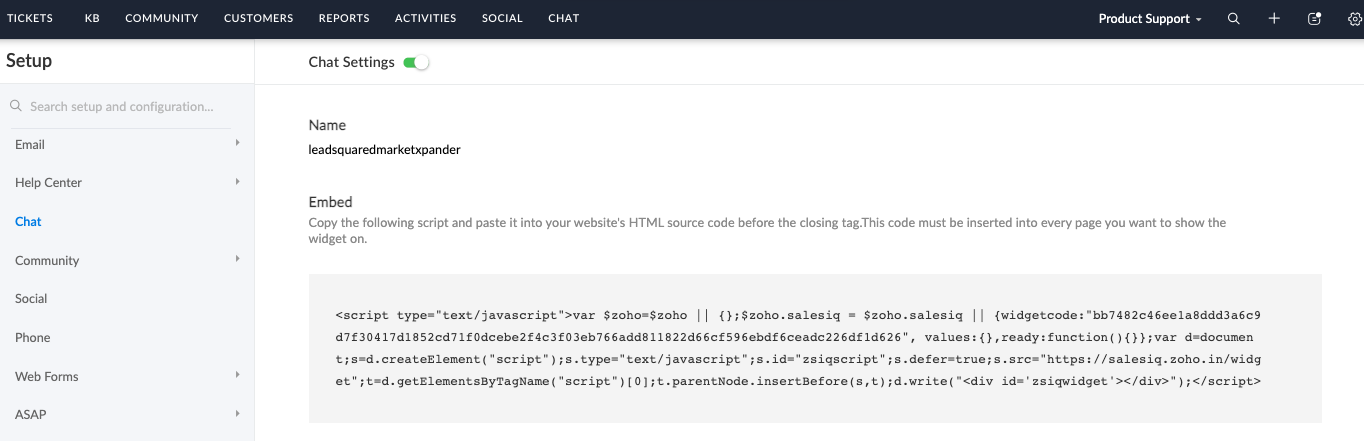
This feature enables the Zoho Sales IQ chat to be automatically integrated with Desk.
https://desk.zoho.in/support/leadsquaredmarketxpander/ShowHomePage.do#setup/channels/all/chatsettings
The script seen in the screenshot above was shared to Shridevi and she has embedded the script in Leadsquared user accounts from the backend.
More details regarding Chat will be covered in a new article.
—————————————————————————————————————–
Community — > This feature is not used for now.
—————————————————————————————————————–
Social — >
We have only configured Twitter account with Desk. The credentials are shared by Shibani.
—————————————————————————————————————–
Webforms — >
We have created an advanced webform from the url below and have embedded the script in our leadsquared helpdesk.
https://desk.zoho.in/support/leadsquaredmarketxpander/ShowHomePage.do#setup/channels/webform

More details regarding Chat will be covered in a new article.
—————————————————————————————————————–
Community — > This feature is not used for now.
—————————————————————————————————————–
Social — >
We have only configured Twitter account with Desk. The credentials are shared by Shibani.
—————————————————————————————————————–
Webforms — >
We have created an advanced webform from the url below and have embedded the script in our leadsquared helpdesk.
https://desk.zoho.in/support/leadsquaredmarketxpander/ShowHomePage.do#setup/channels/webform
Any submissions happening from the above form will automatically land in Product support department as a ticket.
—————————————————————————————————————–
Business Hours — >
All the business related time slots/ working hours are configured here.
https://desk.zoho.in/support/leadsquaredmarketxpander/ShowHomePage.do#setup/general/businesshours
– All departments working time has to be defined here like: SLA time, Assignment time, Non business hours etc.
—————————————————————————————————————–
Business Hours — >
All the business related time slots/ working hours are configured here.
https://desk.zoho.in/support/leadsquaredmarketxpander/ShowHomePage.do#setup/general/businesshours
– All departments working time has to be defined here like: SLA time, Assignment time, Non business hours etc.
– Once the Business hours are set, we can also tag the holiday list accordingly.
– You can create a holiday list here – https://desk.zoho.in/support/leadsquaredmarketxpander/ShowHomePage.do#setup/general/holidaylist
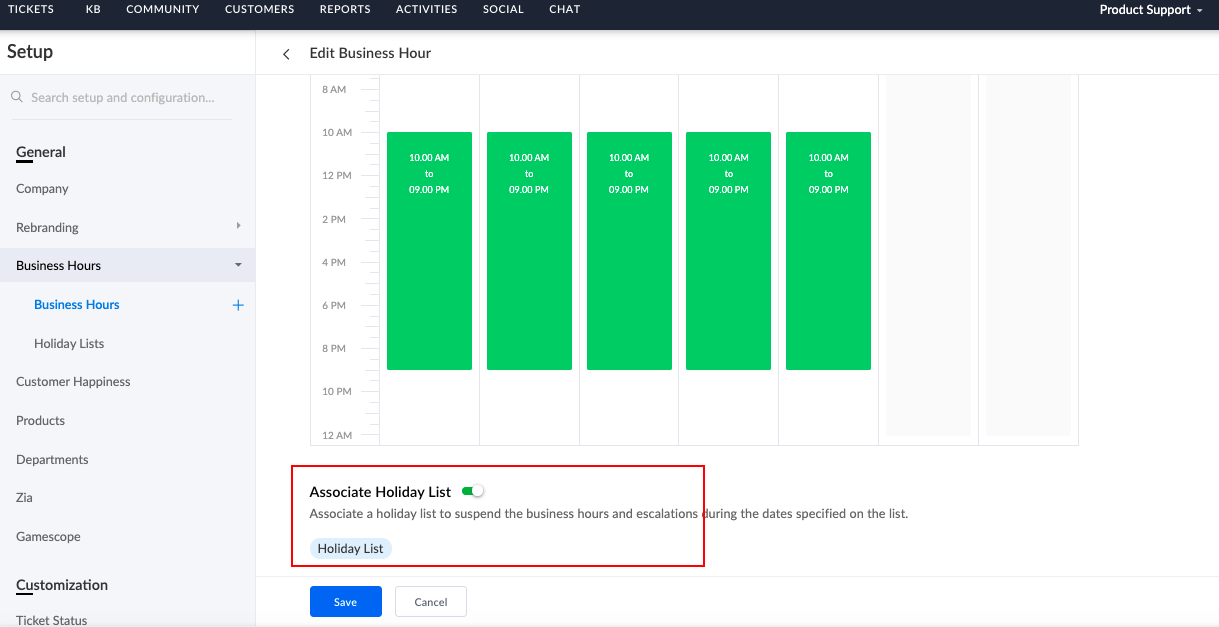
– This list has to be updated every year after the update from Priya. This will automatically help, the assignment rules to stop working during holiday’s.
—————————————————————————————————————–
Customer Happiness –>
https://desk.zoho.in/support/leadsquaredmarketxpander/ShowHomePage.do#setup/general/all/customerhappiness
Our customer happiness for Product support is enabled here. No other department is using the feature currently.
—————————————————————————————————————–
Department:
The departments that we see within the Desk is created from this URL.
https://desk.zoho.in/support/leadsquaredmarketxpander/ShowHomePage.do#setup/general/departments
Customer Happiness –>
https://desk.zoho.in/support/leadsquaredmarketxpander/ShowHomePage.do#setup/general/all/customerhappiness
Our customer happiness for Product support is enabled here. No other department is using the feature currently.
—————————————————————————————————————–
Department:
The departments that we see within the Desk is created from this URL.
https://desk.zoho.in/support/leadsquaredmarketxpander/ShowHomePage.do#setup/general/departments
—————————————————————————————————————–
CUSTOMIZATION
Ticket Status –>
The status field values are defined here. Always ensure to check if the department is chosen right while adding a new status as mentioned in the below screenshot
https://desk.zoho.in/support/leadsquaredmarketxpander/ShowHomePage.do#setup/customization/24894000045242402/requeststatus
Ticket Status –>
The status field values are defined here. Always ensure to check if the department is chosen right while adding a new status as mentioned in the below screenshot
https://desk.zoho.in/support/leadsquaredmarketxpander/ShowHomePage.do#setup/customization/24894000045242402/requeststatus
** Fall Back to default field usage — In product support our default status is Open. So if, the Fall Back to default is checked for a status called waiting on Customer, then when the ticket reopens it will go back to default status Open automatically rather than Customer Responded. So we have to ensure all other status, fall back to default should be unchecked.
—————————————————————————————————————–
Layouts and Fields — >
a) Layouts
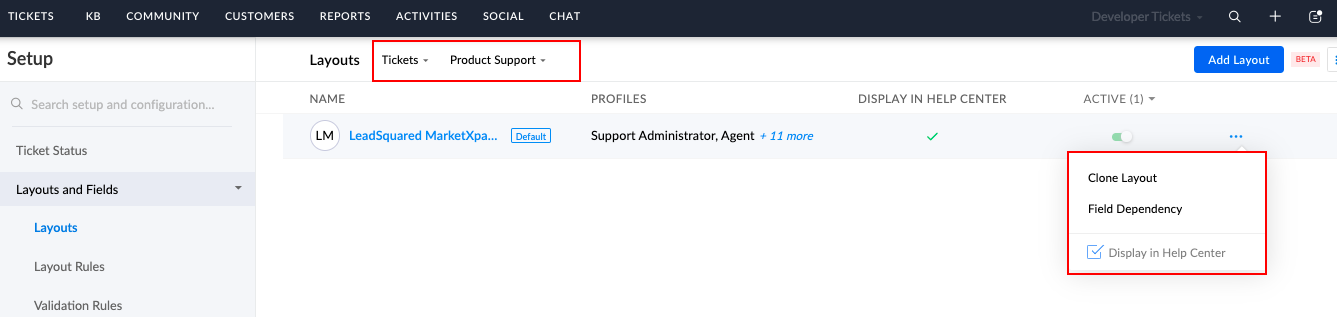
Here, we define the fields for each department(for accounts, contacts and ticket creation section). We can drag and drop the fields from list and name then accordingly. You can also set permission for each field accordingly.
https://desk.zoho.in/support/leadsquaredmarketxpander/ShowHomePage.do#setup/customization/Cases/pagelayout
—————————————————————————————————————–
Layouts and Fields — >
a) Layouts
Here, we define the fields for each department(for accounts, contacts and ticket creation section). We can drag and drop the fields from list and name then accordingly. You can also set permission for each field accordingly.
https://desk.zoho.in/support/leadsquaredmarketxpander/ShowHomePage.do#setup/customization/Cases/pagelayout
-When creating a new layout, we have to choose the section whether the fields has to be created for Ticket/ Contact/ Account.
-Next, we have to choose the department.
-Once a layout is created we can name and clone the layout to a different department as well. For this you can simply click on Clone layout.
-If you check the Help Center, the same layouts will be showing up in the help center for PS/CS team to use for submissions as well.
-When clicking on add layout or existing layout, this is the screen(mentioned above) that shows up
– One can drag and drop fields from the section
– when clicked on the gear icon near each icon the option shows as above.
– when clicked on the gear icon near each icon the option shows as above.
– you can edit the properties of the field (rename the field, add values, mark as required, get the schema name, make the field visible in help center etc)
– replace values is a single touch option to change the field values directly( eg: picklist field prioirty has many values and we have to replace all high to low. this can be achieved from here, but high will no longer be available and will be renamed as Low)
b) Layout Rules
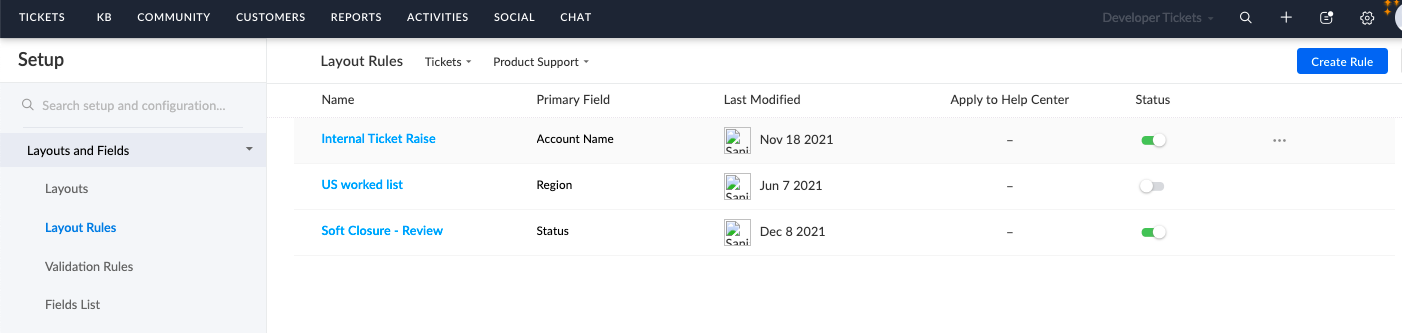
We set rules for fields here.
https://desk.zoho.in/support/leadsquaredmarketxpander/ShowHomePage.do#setup/customization/Cases/layout-rules
Use case –
If Account Name is Byjus, then show the new field Byjus ticket Classification. This is achieved here.
– replace values is a single touch option to change the field values directly( eg: picklist field prioirty has many values and we have to replace all high to low. this can be achieved from here, but high will no longer be available and will be renamed as Low)
b) Layout Rules
We set rules for fields here.
https://desk.zoho.in/support/leadsquaredmarketxpander/ShowHomePage.do#setup/customization/Cases/layout-rules
Use case –
If Account Name is Byjus, then show the new field Byjus ticket Classification. This is achieved here.
c) Validation rules:
The error messages that we see when we do not enter accurate value/ empty value in the field is created here. this field validates the conditions that we set and displays the proper messages accordingly.
https://desk.zoho.in/support/leadsquaredmarketxpander/ShowHomePage.do#setup/customization/Cases/validation-rules
d) Field list
Here we can see all the fields and their schema names for the department.
https://desk.zoho.in/support/leadsquaredmarketxpander/ShowHomePage.do#setup/customization/Cases/fieldslist
API names are used for Custom codes inside workflow rules, API sync from account 133 to Desk and Desk to CSB.
e) Field dependencies
Based on the feature value we select, the sub feature values shows up. This is the same for type and Sub Type. That configuration is done here.
https://desk.zoho.in/support/leadsquaredmarketxpander/ShowHomePage.do#setup/customization/Cases/fieldsmap
Here we can see all the fields and their schema names for the department.
https://desk.zoho.in/support/leadsquaredmarketxpander/ShowHomePage.do#setup/customization/Cases/fieldslist
API names are used for Custom codes inside workflow rules, API sync from account 133 to Desk and Desk to CSB.
e) Field dependencies
Based on the feature value we select, the sub feature values shows up. This is the same for type and Sub Type. That configuration is done here.
https://desk.zoho.in/support/leadsquaredmarketxpander/ShowHomePage.do#setup/customization/Cases/fieldsmap
We will have to choose the picklist field, set one as a parent field and another one as child field and tick mark the values which should show up when we check the respective parent field value.
f) Field Permission:
We can set the permissions for each field based on profiles here.
https://desk.zoho.in/support/leadsquaredmarketxpander/ShowHomePage.do#setup/customization/Cases/fieldpermissions/24894000000012339
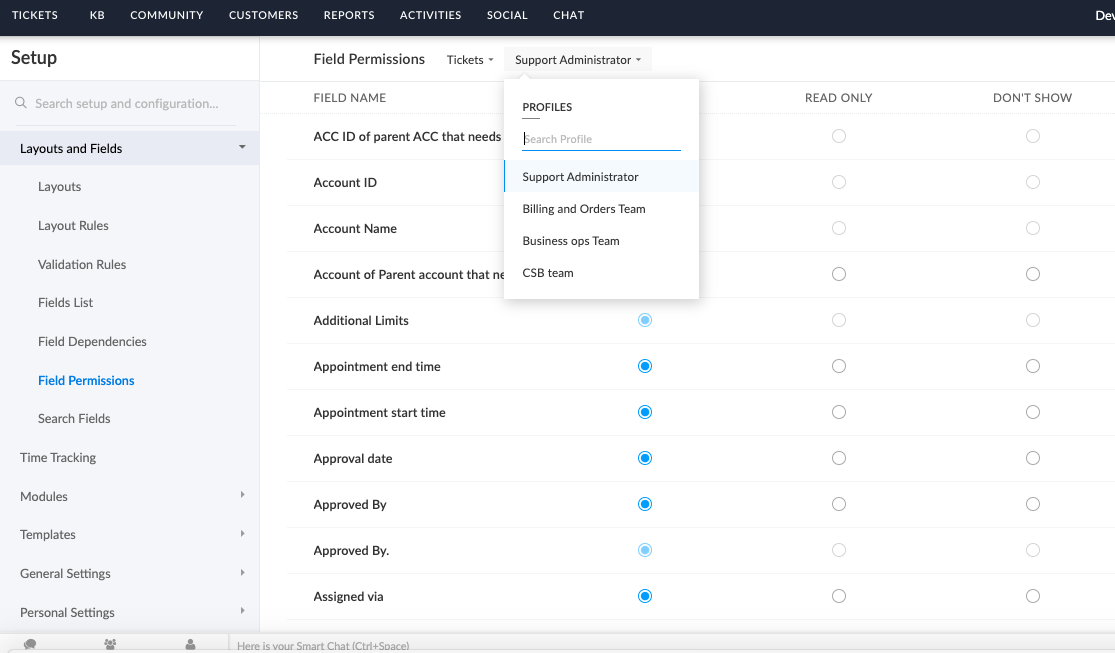
We can set the permissions for each field based on profiles here.
https://desk.zoho.in/support/leadsquaredmarketxpander/ShowHomePage.do#setup/customization/Cases/fieldpermissions/24894000000012339
—————————————————————————————————————–
Organize Modules — >
The way the modules are displayed can be changed here
https://desk.zoho.in/support/leadsquaredmarketxpander/ShowHomePage.do#setup/customization/modules/organize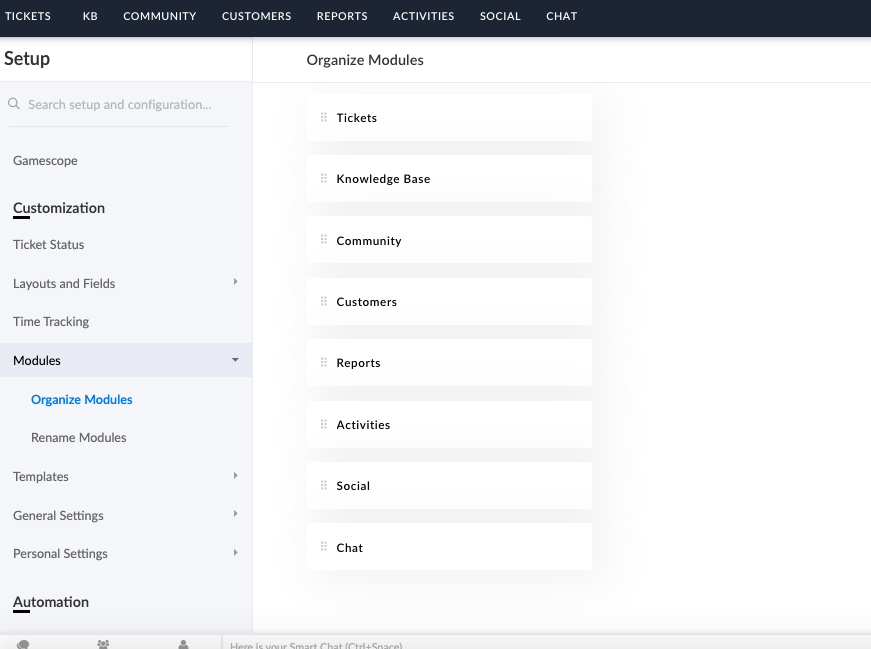
The way the modules are displayed can be changed here
https://desk.zoho.in/support/leadsquaredmarketxpander/ShowHomePage.do#setup/customization/modules/organize
—————————————————————————————————————–
Email Templates — >
https://desk.zoho.in/support/leadsquaredmarketxpander/ShowHomePage.do#setup/customization/24894000000010772/emailtemplates
The Canned Responses, Notification emails, SLA emails etc are configured here.
—————————————————————————————————————–
Email Templates — >
https://desk.zoho.in/support/leadsquaredmarketxpander/ShowHomePage.do#setup/customization/24894000000010772/emailtemplates
The Canned Responses, Notification emails, SLA emails etc are configured here.
—————————————————————————————————————–


