
The Automation feature lets you automate your entire workflow using an intuitive and easy to use visual designer. It’s a powerful way to push your leads to conversion! Just set it up once and watch your leads trickle down the sales funnel with minimal manual effort.
Here are some examples of what you can achieve through automation –
- Send automated campaigns to leads and follow up based on their behaviour.
- Nurture leads with the right messages depending on their engagement.
- Automatically distribute leads to users/groups based on location, interests, products, etc.
- Automatically check-in/check-out your users, create tasks and alerts based on their availability and send them automated messages on special occasions.
- Use Lapps and webhooks to pull/push data and automate processes you perform in third-party applications.
- And lots more…
Lead vs. User Automation #
You can set up 2 different types of automations based on the automation trigger you select –
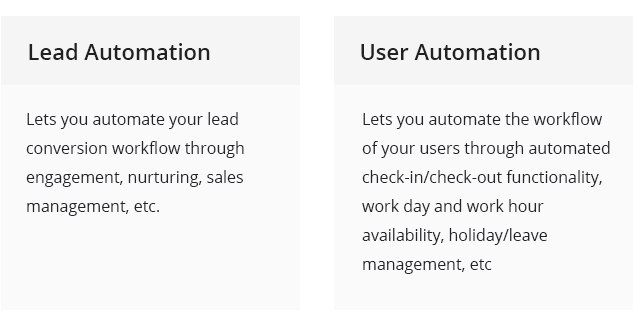
If you’re new to the automation feature, we recommend you go through this article first. If you’ve used automation before, you can skip to any of the following articles…
| Lead Automation | User Automation |
| How to Create a Lead Automation Introduction to lead automation and information on each automation trigger.Triggers in Lead Automation Details of each lead automation trigger. | How to Create a User Automation Quick start guide for user automation.Triggers in User Automation Details of each user automation trigger. |
| Conditions in Lead Automation Overview of all the conditions available in lead automation.
| Conditions in User Automation Overview of all the conditions in user automation.
|
| Actions in Lead Automation Overview of all the actions available in lead automation.
How you can send dynamic content in your emails to leads. | Actions in User Automation Overview of all the actions available in lead automation.
|
| Group Level Automation Sales group managers can create lead automations for their own sales groups. | |
| Automation Audit Report See who changed what and when, as well as previous versions of your automations. | |
Automation Basics #
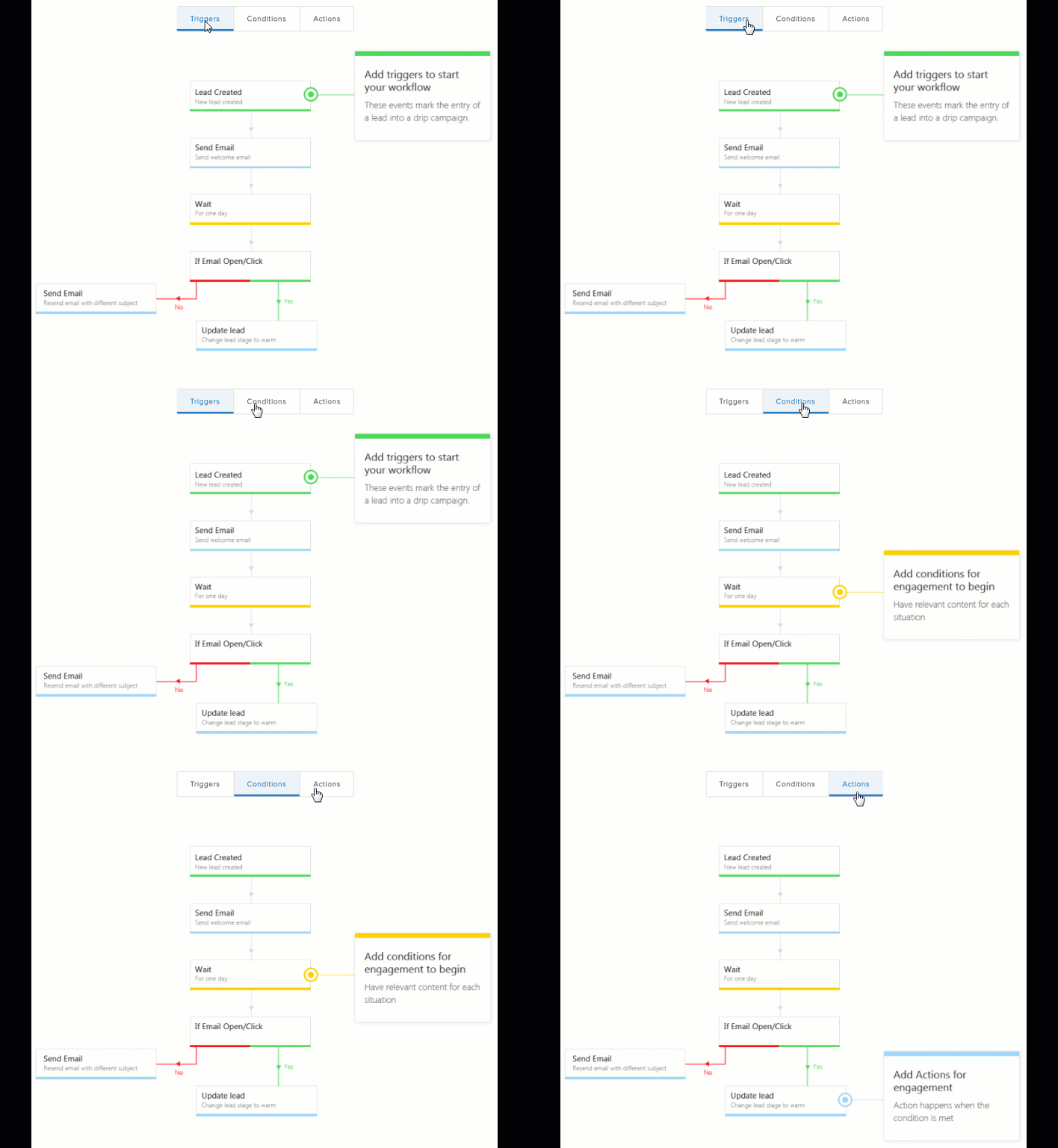
Automations have three key components –
- Triggers
The starting point of your automation. When a new lead is created for instance. - Conditions
An if/else or wait until condition that is usually followed by an action. Wait until a lead opens an email for example. - Actions
An action to perform once a condition is met, such as adding a lead to a list or sending an email once a condition is met.
Navigation #
From your main menu, navigate to Workflow>Automation.
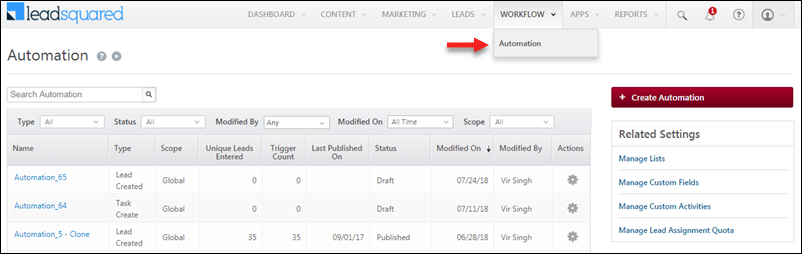
From this page, you can –
- Create new automations.
- Filter existing automations by Type, Status, Modified By and Modified On.
- Use the Settings
 icon alongside an existing automation to Publish, Edit, Rename, Clone or Delete the automation.
Any Questions? #
Do you have a workflow you would love to automate? Let us know in the comments. We’re happy to help!


