
The process designer lets you organize your forms into workflows. You can create workflows for any business process such as loan/insurance application, KYC collection, education applications, medical applications, etc.
After you’ve created one or more forms, use the process designer to –
If you haven’t created any forms yet, see How to Create a Form.
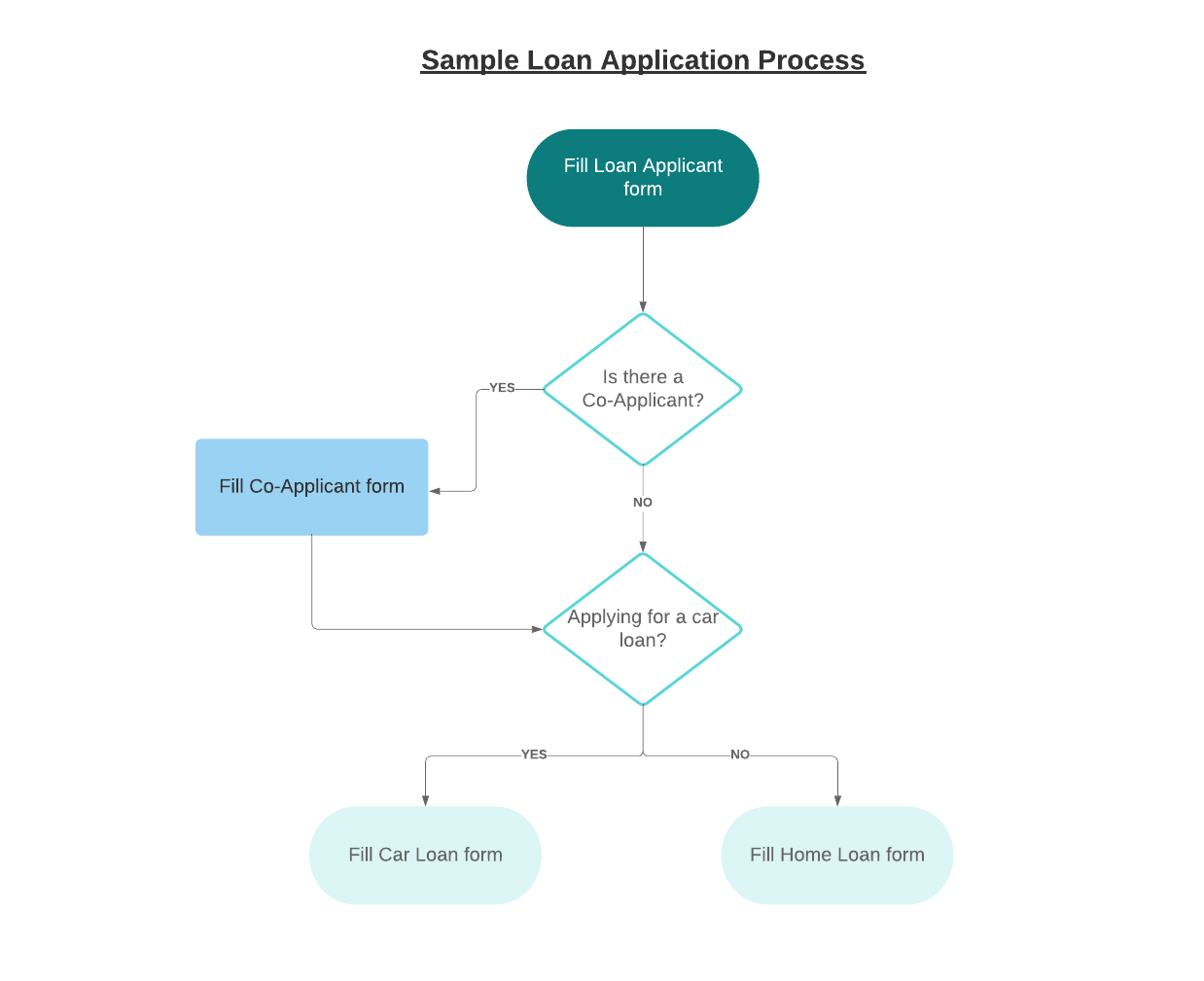
This example takes the use case of a simplified loan application process.
Let’s assume we’ve created the following forms –
Using the process designer, we can chain these forms together to create the following process –
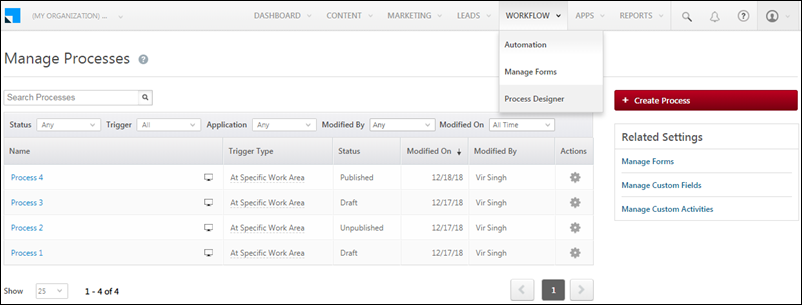
To access the Manage Processes page, navigate to Workflow>Process Designer.
All the processes you create will appear here.You can search for a process or filter by status,trigger, application, modified by and modified on dates. The settings icon under the Actions column allows you to edit, delete, clone, rename or publish a process.
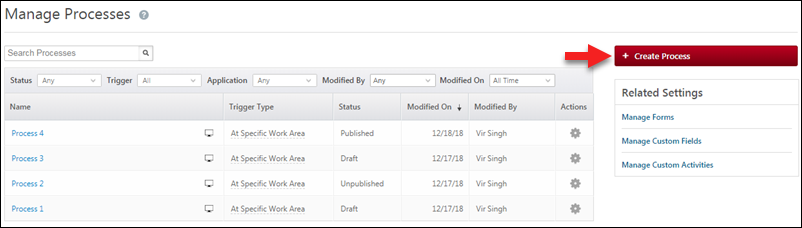
Click the Create Process button to create a new process.
Now choose a trigger –

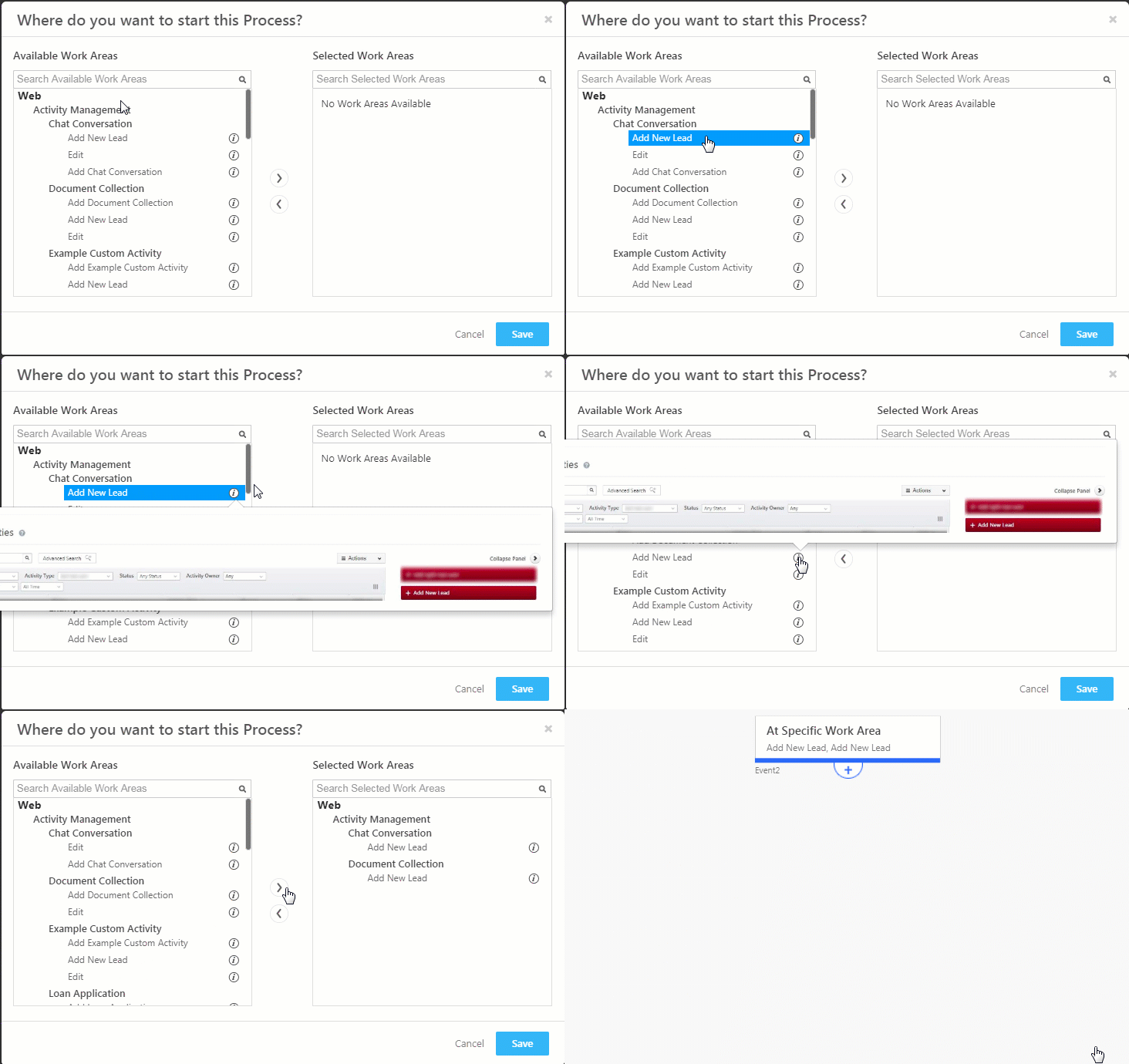
If you select the At Specific Work Area trigger you can choose the page or area you want the process to be initiated from. You can choose multiple work areas to begin a process from.
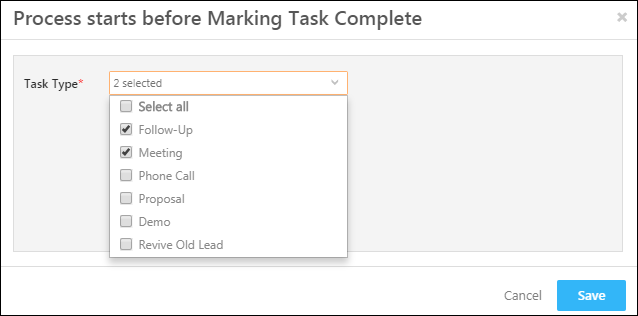
The On Task Complete trigger allows you to start the process when a user attempts to mark a task type complete. You must select the task types you want to initiate the process on by clicking the corresponding check-boxes. Click Save when you’re done.
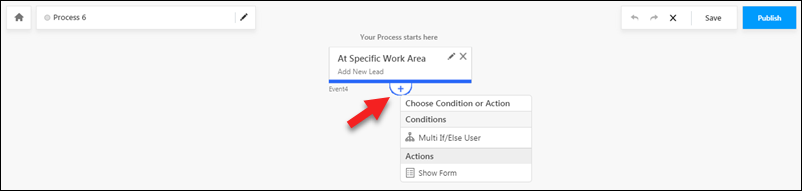
After setting a trigger, click the add icon to view the subsequent conditions and actions.
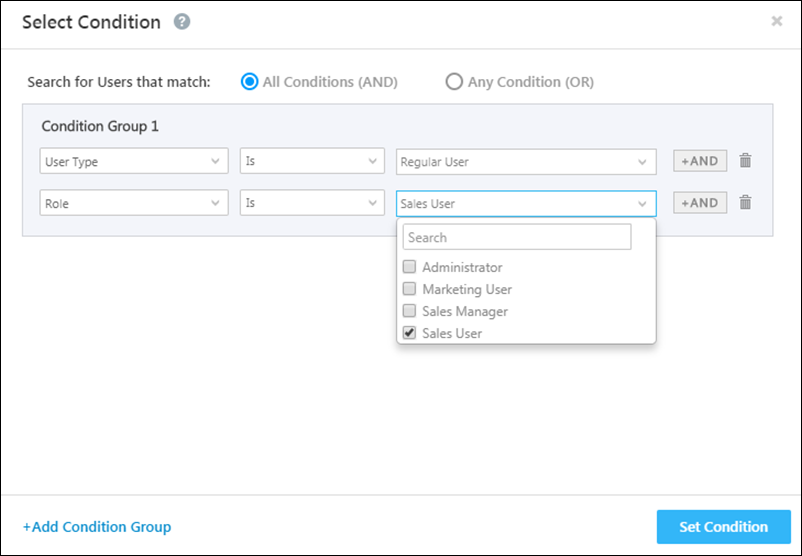
You can set up multiple conditions to choose which users can see your forms and processes. You can set up these conditions on any user attribute including role, team, sales group, etc.
The process will branch out into a Yes path and a No path.
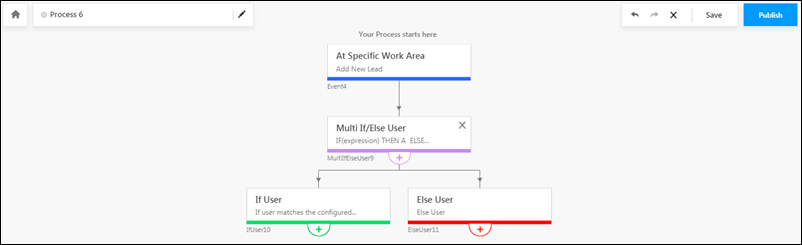
Click the add icon under each path to continue the process.
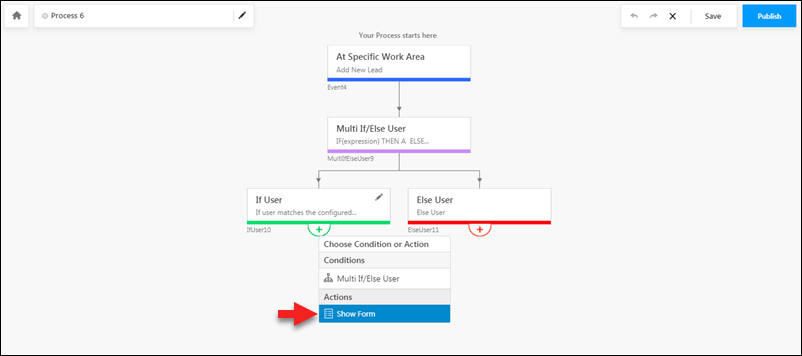
Click the Show Form action to display a published form at any point in your process.
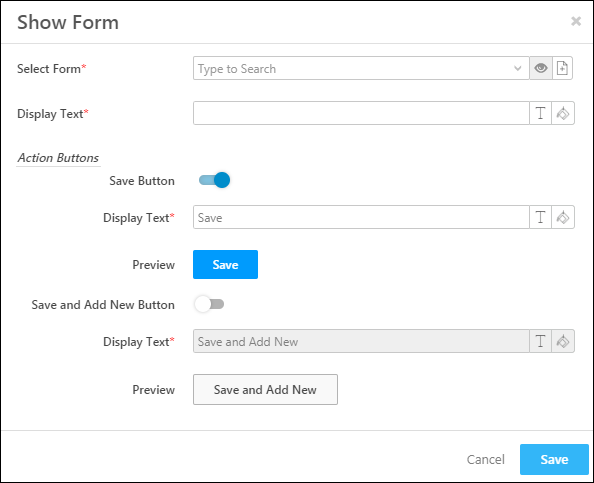
The Show Form pop-up allows you to choose the form you want to display, how you want the initiate process button to look in the work areas you selected and also how you want the action buttons within the form to appear.
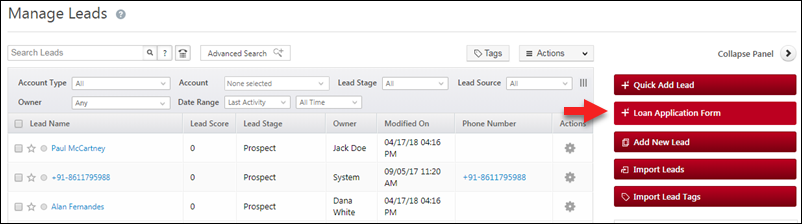
After selecting a form and setting all the configurations, click Save. Here’s an example of how the initiate process or open form button will appear –
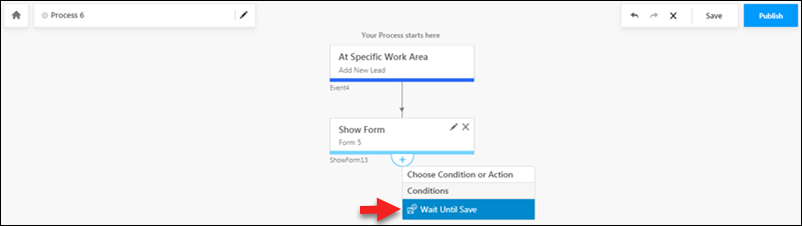
After you’ve added a Show Form action, you must select the Wait Until Save option before you can add more conditions or actions to the process.
Following the Wait Until Save condition, you can choose conditions based on the form fields of the previous form you’ve selected.
For example, if you’ve included a field in your previously chosen form called ‘Do you have a co-applicant’. You can now use the Multi If/Else Data condition to check if the field value is ‘Yes’, If the value is ‘Yes’ you can show the ‘Co-Applicant’ form.
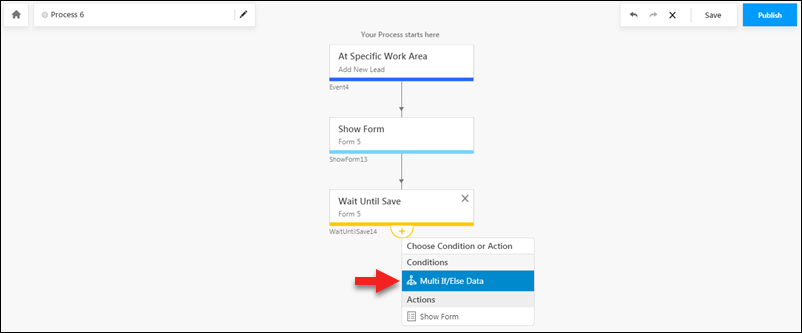
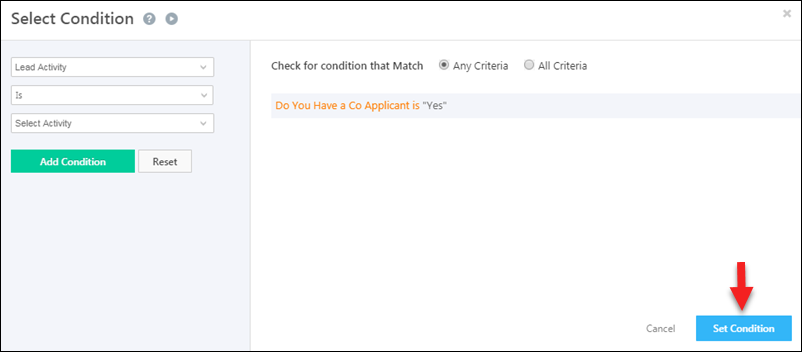
Use the advanced search feature to set conditions on the fields of the form you selected in your previous Show Form action. For more details, see How to Use Advanced Search.
When you’re done, click Set Condition.
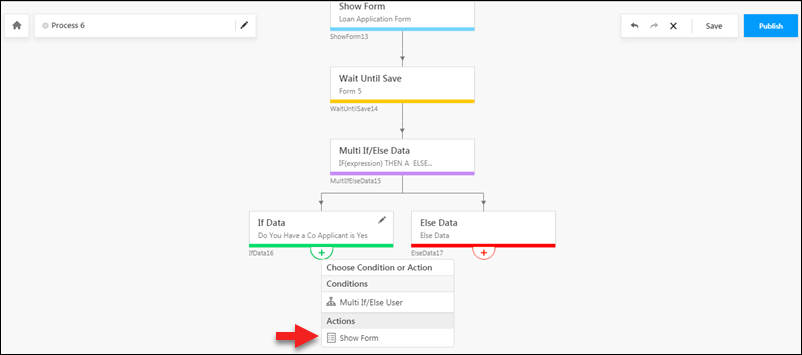
You can now show another form when these conditions are matched.
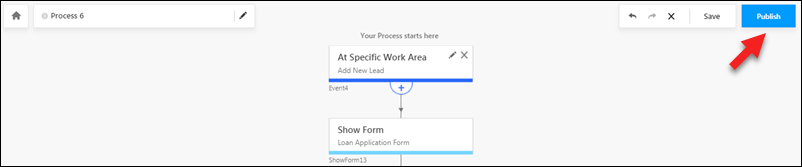
Although your process gets auto-saved, it’s good practice to click the Save button to ensure you don’t lose your work. Click Publish when you’re done creating the process.
Note: Changes to a process may take up to 5 minutes to reflect.
The following process follows a simple two form flow. The first form is a simple loan application form. If the user marks the ‘Do You Have a Co-Applicant’ field as ‘Yes’ in this form, the process we created will trigger the second ‘Co-applicant’ form to appear.

If you have a question that this article did not answer, please let us know in the comments section below. We’ll be happy to improve the content and help you with any doubts you have.
After you’ve created one or more forms, use the process designer to –
- Choose the work area (Manage Forms page, Manage Activities page, Smart Views, etc.) where you want to display your forms.
- Set conditions on users (show forms to particular teams, roles, sales groups, etc.) and form field values.
- Chain together multiple forms to create processes.
If you haven’t created any forms yet, see How to Create a Form.
Prerequisites #
- You must be an administrator user to use the process designer.
- You must create and publish forms to use in the process designer.
Example Use Case #
This example takes the use case of a simplified loan application process.
Let’s assume we’ve created the following forms –
- Loan Applicant form
- Co-Applicant form
- Car Loan form
- Home Loan form
Using the process designer, we can chain these forms together to create the following process –
Manage Processes #
To access the Manage Processes page, navigate to Workflow>Process Designer.
All the processes you create will appear here.You can search for a process or filter by status,trigger, application, modified by and modified on dates. The settings
icon under the Actions column allows you to edit, delete, clone, rename or publish a process.Create a Process #
Click the Create Process button to create a new process.
Now choose a trigger –
- At Specific Work Area
This option lets you create a button on a specific page (Manage Leads, Lead Details, etc.) to trigger the process. - On Task Complete
The process will be triggered before a user marks a task complete.
At Specific Work Area
If you select the At Specific Work Area trigger you can choose the page or area you want the process to be initiated from. You can choose multiple work areas to begin a process from.
- Under the Available Work Areas section, click on a work area to select it. Click the
 icon to see a sample screenshot of where the process button will be placed.
 - Then click the arrow
 icon to move the work area into the Selected Work Area column.
 - Repeat steps 1. and 2. until you’ve selected all the work areas you want the process to start from.
- Click Save.
On Task Complete
The On Task Complete trigger allows you to start the process when a user attempts to mark a task type complete. You must select the task types you want to initiate the process on by clicking the corresponding check-boxes. Click Save when you’re done.
After setting a trigger, click the add
icon to view the subsequent conditions and actions.User Conditions
You can set up multiple conditions to choose which users can see your forms and processes. You can set up these conditions on any user attribute including role, team, sales group, etc.
- Under Conditions, click the Multi If/Else User option.
- You can create condition groups and set up multiple conditions. For more information, see User Advanced Search.
- Click Set Condition when you’re done.
The process will branch out into a Yes path and a No path.
Click the add icon under each path to continue the process.
Show Form Action
Click the Show Form action to display a published form at any point in your process.
The Show Form pop-up allows you to choose the form you want to display, how you want the initiate process button to look in the work areas you selected and also how you want the action buttons within the form to appear.
After selecting a form and setting all the configurations, click Save. Here’s an example of how the initiate process or open form button will appear –
Adding More Forms to the Process
After you’ve added a Show Form action, you must select the Wait Until Save option before you can add more conditions or actions to the process.
Following the Wait Until Save condition, you can choose conditions based on the form fields of the previous form you’ve selected.
For example, if you’ve included a field in your previously chosen form called ‘Do you have a co-applicant’. You can now use the Multi If/Else Data condition to check if the field value is ‘Yes’, If the value is ‘Yes’ you can show the ‘Co-Applicant’ form.
Use the advanced search feature to set conditions on the fields of the form you selected in your previous Show Form action. For more details, see How to Use Advanced Search.
When you’re done, click Set Condition.
You can now show another form when these conditions are matched.
Save & Publish
Although your process gets auto-saved, it’s good practice to click the Save button to ensure you don’t lose your work. Click Publish when you’re done creating the process.
Note: Changes to a process may take up to 5 minutes to reflect.
Demo #
The following process follows a simple two form flow. The first form is a simple loan application form. If the user marks the ‘Do You Have a Co-Applicant’ field as ‘Yes’ in this form, the process we created will trigger the second ‘Co-applicant’ form to appear.
Any Questions? #
If you have a question that this article did not answer, please let us know in the comments section below. We’ll be happy to improve the content and help you with any doubts you have.


