
Table of Contents
The Account Details page is where you’ll find all information related to a specific account. You can perform actions on the account, see all associated leads, create tasks, add activities and lots more…
If you’re new to the accounts feature, these articles will help –
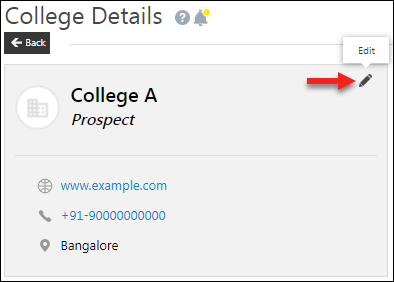
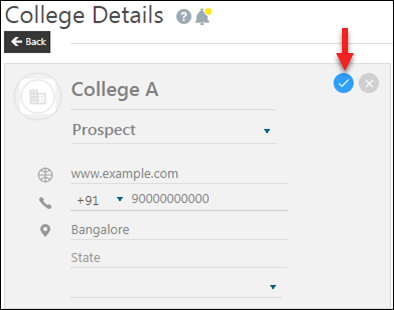
The account Vcard shows you the account stage and contact information. To edit the Vcard hover your cursor over it and clicking the edit icon.
icon.
Note: If you’re using a telephony connector and have click2call enabled, you can just click the phone number on the Vcard to initiate a phone call.
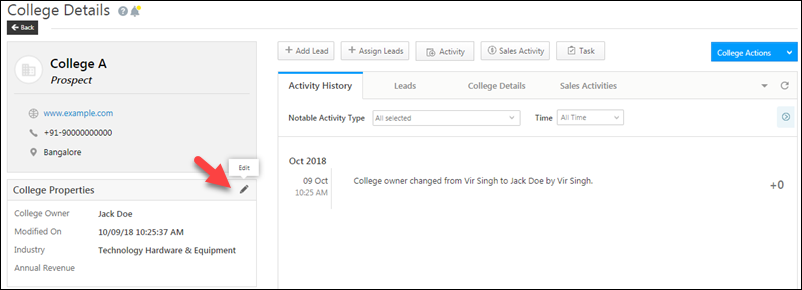
You can also edit the Account Properties section shown below –
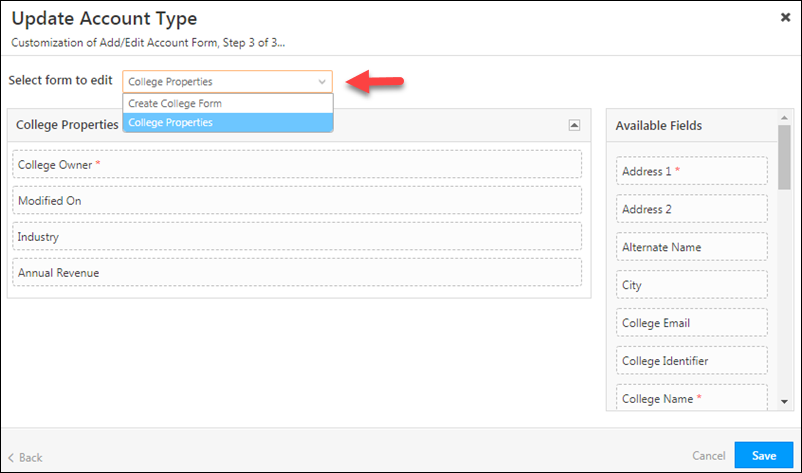
And configure the fields you want to see in the Account Properties tab. To do this –
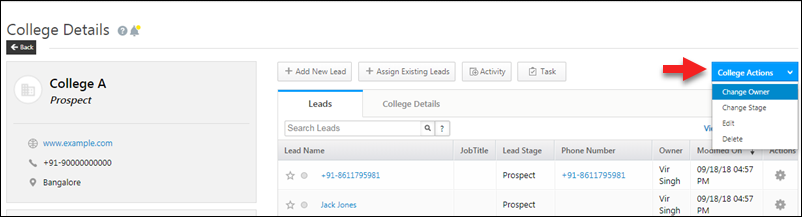
You can perform the following actions on an account –
Hover your cursor over the <Account Name> Actions menu, then choose the action.
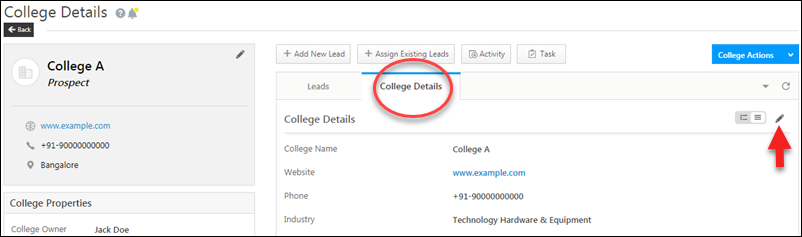
You can also navigate to the <Account Name> Details tab and edit the account details from there.
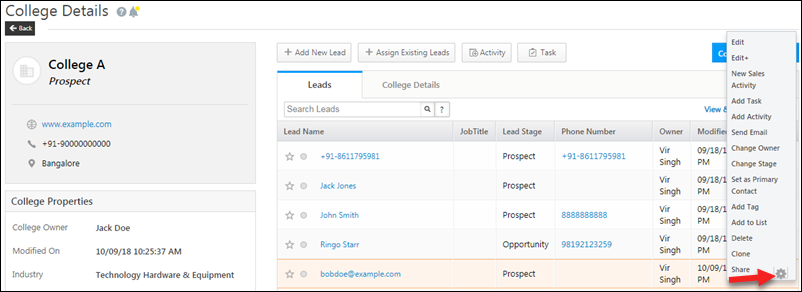
To perform actions on leads, hover your cursor over the settings wheel alongside a lead and choose an action.
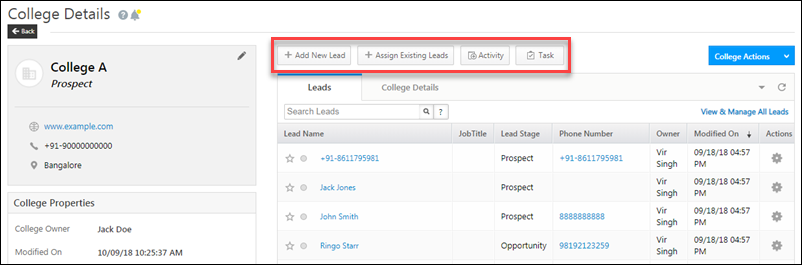
To add a new lead to the account, add an existing lead, post an activity on a lead or create a task, just click the corresponding quick add buttons.
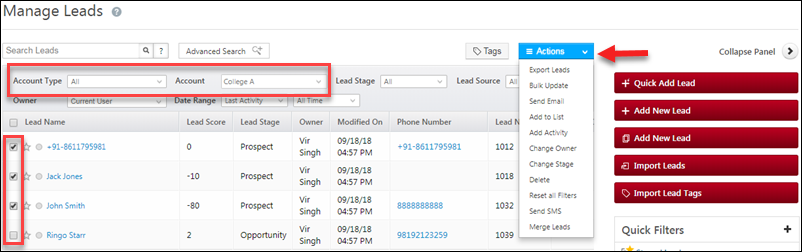
If you want to perform bulk actions on all leads in an account, click the View & Manage All Leads link. This will direct you to the Manage Leads page where the account filters will be set to the current account by default. You can select leads in bulk, then choose an action.
If you have any questions related to this article or the accounts feature in general, don’t hesitate to type them in to the comments section below. We’re here to help!
If you’re new to the accounts feature, these articles will help –
Account Vcard and Properties #
The account Vcard shows you the account stage and contact information. To edit the Vcard hover your cursor over it and clicking the edit
icon.Note: If you’re using a telephony connector and have click2call enabled, you can just click the phone number on the Vcard to initiate a phone call.
You can also edit the Account Properties section shown below –
And configure the fields you want to see in the Account Properties tab. To do this –
- Navigate to My Account>Settings>Accounts Customization>Account Settings.
- Alongside the account type you want to configure, hover your cursor over the settingswheel, then click Edit.
- Click Next to navigate to step 3 of 3. Use the dropdown to select the Account Properties option.
- Drag and drop the fields you want from the available fields section to the account properties section.
- Click Save.
Account Actions #
You can perform the following actions on an account –
- Change Owner
- Change Stage
- Edit
- Delete
Hover your cursor over the <Account Name> Actions menu, then choose the action.
You can also navigate to the <Account Name> Details tab and edit the account details from there.
Lead Actions #
To perform actions on leads, hover your cursor over the settings
wheel alongside a lead and choose an action.To add a new lead to the account, add an existing lead, post an activity on a lead or create a task, just click the corresponding quick add buttons.
If you want to perform bulk actions on all leads in an account, click the View & Manage All Leads link. This will direct you to the Manage Leads page where the account filters will be set to the current account by default. You can select leads in bulk, then choose an action.
Any Questions? #
If you have any questions related to this article or the accounts feature in general, don’t hesitate to type them in to the comments section below. We’re here to help!


