
Table of Contents
You can track updates made to your automations through Automation Audit Logs. Not only can you see who changed what and when, you can also see visual representations of previous versions.
To view automation audit logs, from the main menu, navigate to Reports>Reports Home>Audit Logs.
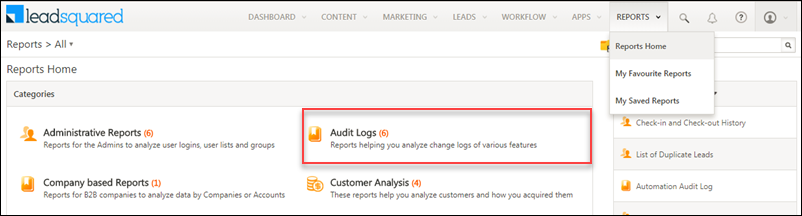
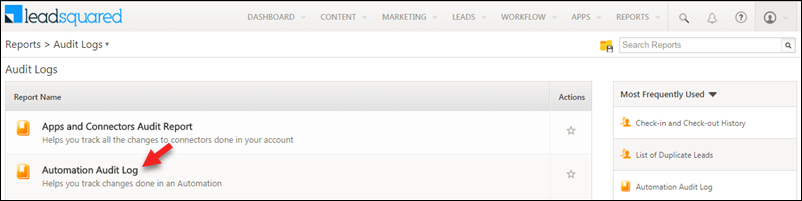
Next, select Audit Logs and then click Automation Audit Log.
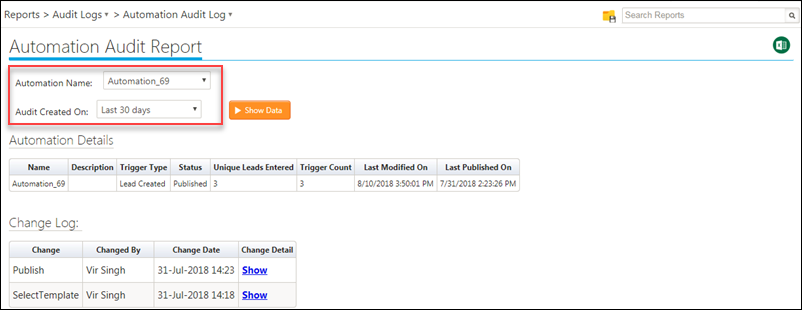
You can select which automation you want to view and the date range you want to see the change log for. Once selected, click Show Data.
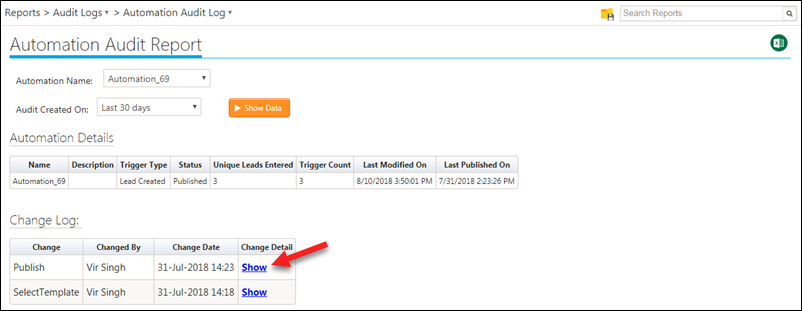
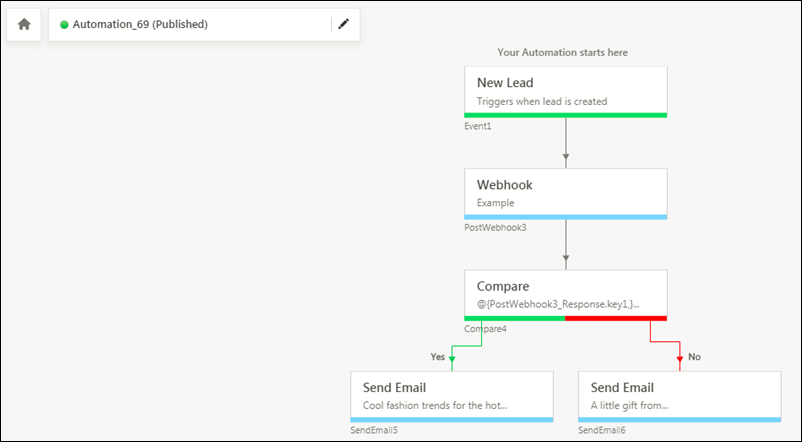
The change log also shows you a visual representation of previous versions of your automation so you can see exactly what was changed. Click Show under the Change Detail column in the Change Log table –
If you have any questions or concerns related to this article, we’d love to discuss them with you in the comments section below!
Navigation #
To view automation audit logs, from the main menu, navigate to Reports>Reports Home>Audit Logs.
Next, select Audit Logs and then click Automation Audit Log.
Using the Report #
You can select which automation you want to view and the date range you want to see the change log for. Once selected, click Show Data.
The change log also shows you a visual representation of previous versions of your automation so you can see exactly what was changed. Click Show under the Change Detail column in the Change Log table –
Any Questions #
If you have any questions or concerns related to this article, we’d love to discuss them with you in the comments section below!


