
1. Feature Overview #
This article will help you troubleshoot issues relating to the LeadSquared Telephony feature.
2. Prerequisites
- You must be an Administrator user to access connector configurations and settings.
- Some technical experience is required to understand the format of the data and configure the connector with your telephony provider.
- The table below outlines the distinction between APIs/URLs provided by LeadSquared and those provided by your telephony provider. LeadSquared’s APIs/URLs are accessible through the UTC configuration page, while your telephony provider’s APIs must be obtained directly from them. If you encounter any issues with an API, please get in touch with the respective API owner.
LeadSquared APIs Telephony Provider APIs Call Route API (Lead/Opportunity routing) – The Call Route API directs incoming calls from existing leads to the corresponding Lead or Opportunity owner in your LeadSquared account.
Note: LeadSquared does not automatically route calls to owners. Instead, it provides the Lead/Opportunity Owner details to your telephony provider, who then routes the call accordinglyClick2Call API – The Click2Call feature allows your sales reps or agents to initiate outbound calls by simply clicking on a lead’s phone number in the Manage Leads or Lead Details pages Agent Popup API – This API logs all inbound and outbound calls made through your telephony account into LeadSquared, ensuring comprehensive call tracking. Agent Panel URL – Agent Panel URL allows you to embed your provider’s Softphone into LeadSquared. Call Log API – All inbound and outbound calls made through your Telephony account can be logged in LeadSquared by setting up Call Logs Call Disposition – Call disposition allows users to record specific information related to a phone call once it ends. Single Sign–On API – This API enables embedding LeadSquared within your telephony provider’s portal.
1. Are API rate limits applicable to telephony/UTC?
The V2 API rate limits do not apply to telephony/UTC APIs. However, since telephony is a shared infrastructure between multiple accounts: in case of an extremely high number of concurrent requests, there is a possibility of throttling the requests via rate limiting, please contact support@leadsquared.com for details.
2. Can I restrict leads from being created on inbound calls from unknown numbers?
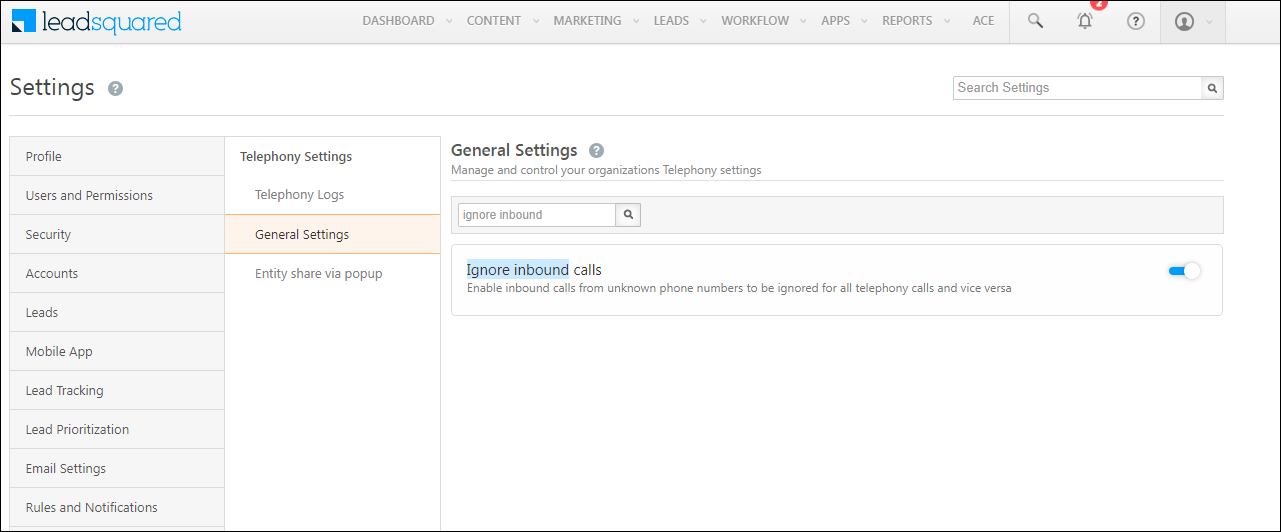
Yes. Navigate to Settings>Telephony>Telephony Settings>General Settings and enable Ignore inbound calls.
3. Can I restrict leads from getting created on outbound calls to non-existing numbers?
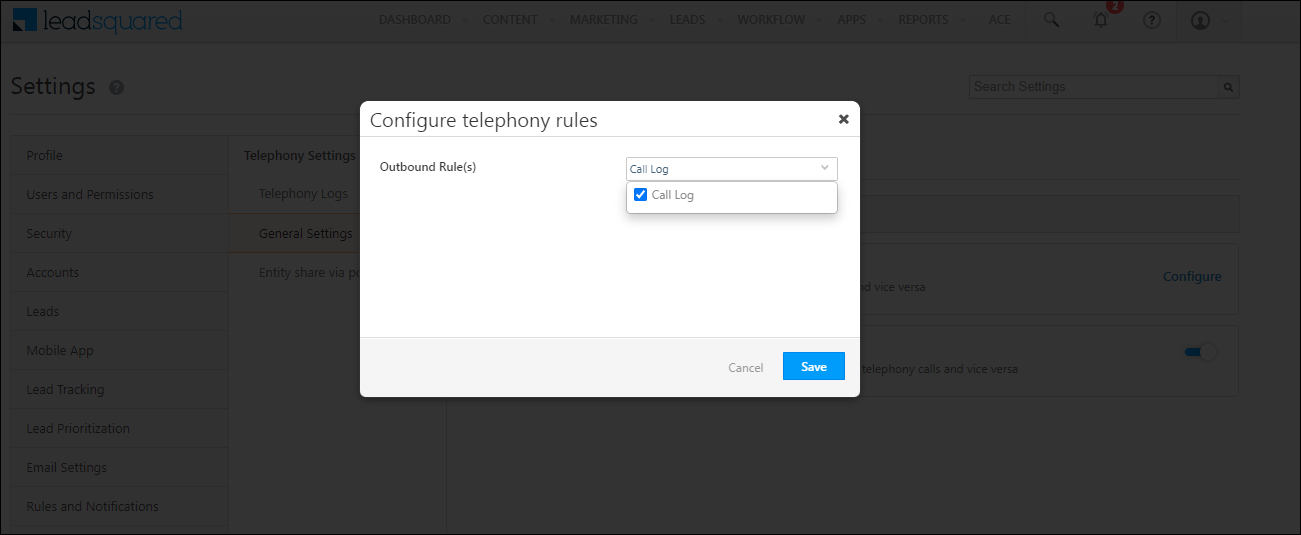
Yes. Navigate to Settings>Telephony>Telephony Settings>General Settings and search for Configure telephony ignore rules. Click on Configure and select Call Log under the Outbound Rule(s) dropdown. Once done, click Save.
4. Why is the Opportunity Route API returning an empty response?
It could be due to one or more of the following reasons –
- Make sure Opportunity is enabled on your account.
- Check if the Opportunity owner is System – in this case, no phone number will be returned.
- Opportunity Route works only on Open Opportunities; if the status is Won or Closed, you will receive an empty response.
5. Why is the lead source for an inbound call not being reflected?
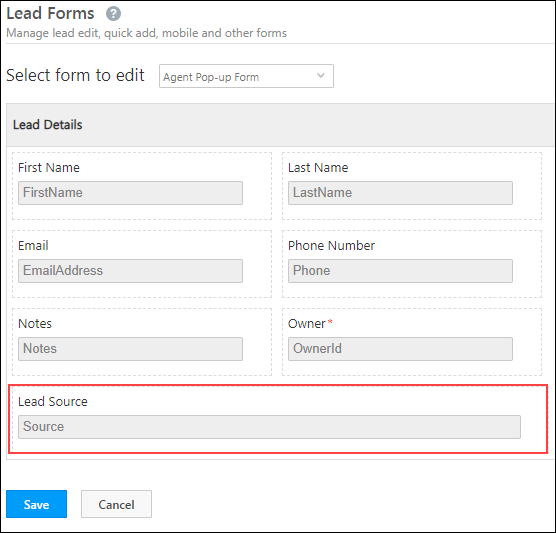
Verify the entity modifying the lead source: If it is the Agent Pop-up, make sure the Lead Source field is part of the Agent Pop-up Form.
6. Why is my telephony provider not receiving traffic from LeadSquared?
This can happen if the provider has restrictions on incoming traffic in their firewall. The provider must whitelist LeadSquared IPs. Reach out to support@leadsquared.com for the list of IPs.
7. How to enable Opportunities for Telephony?
- To enable Opportunities in your account, please reach out to your account manager, or write to support@leadsquared.com.
- From the Advanced Configuration settings page, the Enable Opportunity – Telephony setting must be enabled. To know more, please refer to Organization Settings – Advanced Configuration.
For more information, read the article Opportunity Integration in Telephony.
8. In the case of inbound and outbound calls, which number is the lead’s and agent’s?
- Inbound Calls – The Source Number is the lead’s number and the Destination Number is the agent’s number.
- Outbound Calls – The Source Number is the agent’s number and the Destination Number is the lead’s number.
9. What should I do if I experience call drops during a session?
Call drops are typically caused by issues on the telephony provider’s end.


