
1) How does Help center Sign up notification & approval process works in Zoho Desk ?
There is no other options that we use apart from the above within Help Center.
This is basically a feature which will give access to a third party user to view the status of the tickets which was raised by them. In our scenario, we are currently using this feature within PS/CS team. They raise the developer and billings tickets from here and check the status.
Help Center Portal Link (sign up/ log in) – https://desk.zoho.in/portal/leadsquaredmarketxpander/
URL: https://desk.zoho.in/support/leadsquaredmarketxpander/ShowHomePage.do#setup/channels/helpcenter
URL: https://desk.zoho.in/support/leadsquaredmarketxpander/ShowHomePage.do#setup/channels/helpcenter
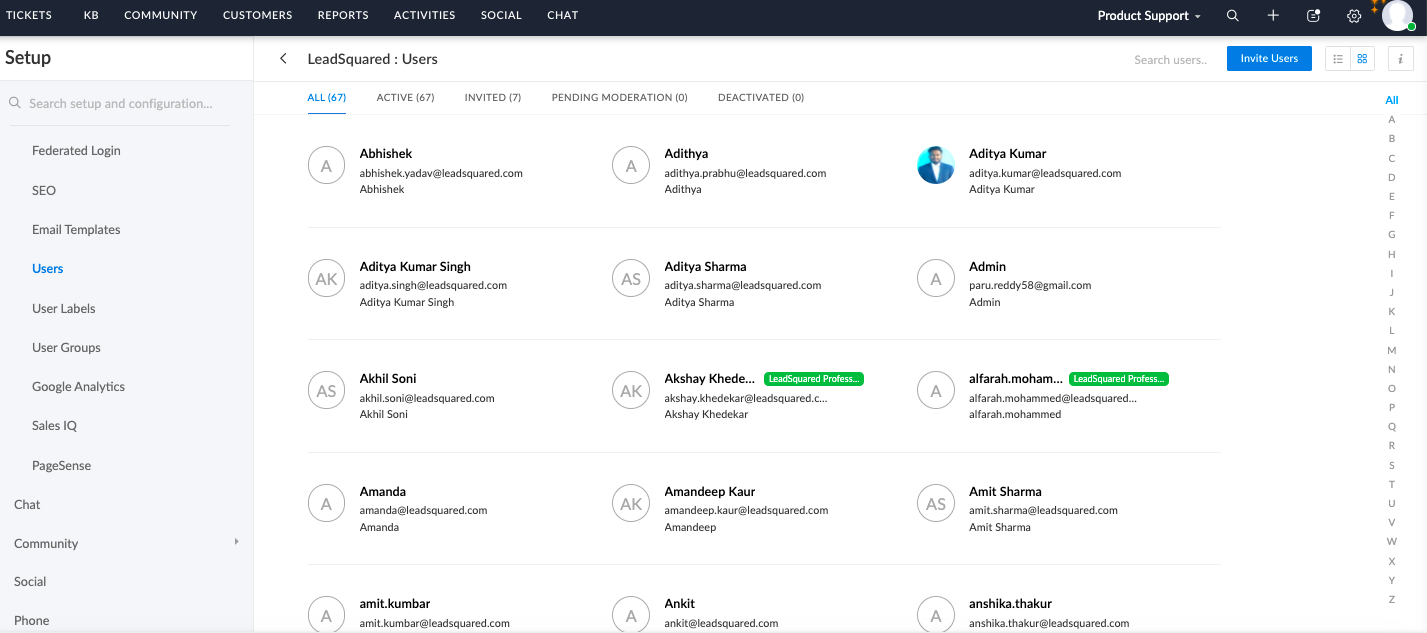
URL which will help us understand the number of users in the help portal is from here.
https://desk.zoho.in/support/leadsquaredmarketxpander/ShowHomePage.do#setup/channels/-1/users
Steps to be followed in Helpcenter sign up.
– When we provide the Helpcenter portal link mentioned above to a person, they can click on sign up option and sign up to the portal.
– Once signed up, the CEO- administrator will receive an email regarding the request/ user can also ping the Zoho POC.
https://desk.zoho.in/support/leadsquaredmarketxpander/ShowHomePage.do#setup/channels/-1/users
Steps to be followed in Helpcenter sign up.
– When we provide the Helpcenter portal link mentioned above to a person, they can click on sign up option and sign up to the portal.
– Once signed up, the CEO- administrator will receive an email regarding the request/ user can also ping the Zoho POC.
– Go to this URL- https://desk.zoho.in/support/leadsquaredmarketxpander/ShowHomePage.do#setup/channels/-1/users
– click pending moderation and then accept the invitation.
– click pending moderation and then accept the invitation.
– When the invitation is accepted, the user will get an email and they can proceed further with setting the password and create/ access the status of tickets.
– You can also deactivate the user from here.
– You can also deactivate the user from here.
There is no other options that we use apart from the above within Help Center.
–
2) How to do Bulk Close/delete the tickets ?
You can filter the set of the tickets by using a view and select all the tickets as shown below and choose to Bulk delete/ close.
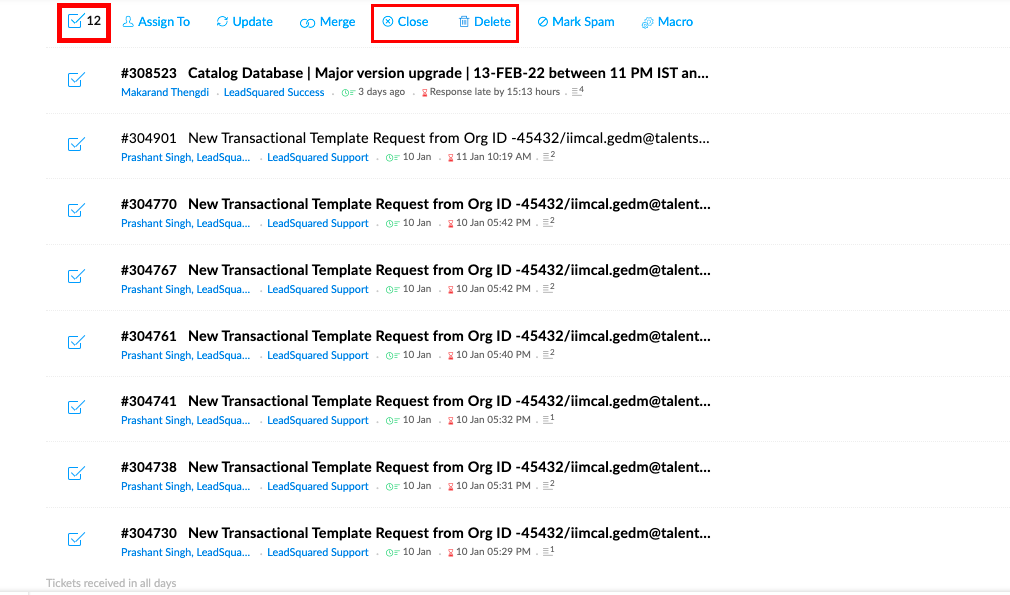
You can filter the set of the tickets by using a view and select all the tickets as shown below and choose to Bulk delete/ close.
Bulk update always takes time and will be in queue. It takes few minutes based on the number of tickets to be actioned.
3) What happens when Ticket is not assigned via Round robin rule?
When a ticket is not assigned and is staying in unassigned, follow the steps given below:
– Go to the respective ticket and check the history of the ticket. See if the custom rule has been executed first. This helps us in understand if the rule has any issues or not.
3) What happens when Ticket is not assigned via Round robin rule?
When a ticket is not assigned and is staying in unassigned, follow the steps given below:
– Go to the respective ticket and check the history of the ticket. See if the custom rule has been executed first. This helps us in understand if the rule has any issues or not.
– Once this is checked, go to settings > Automation > Workflow rule >Custom functions > select the respective rule Round robin > see if any failures has happened.
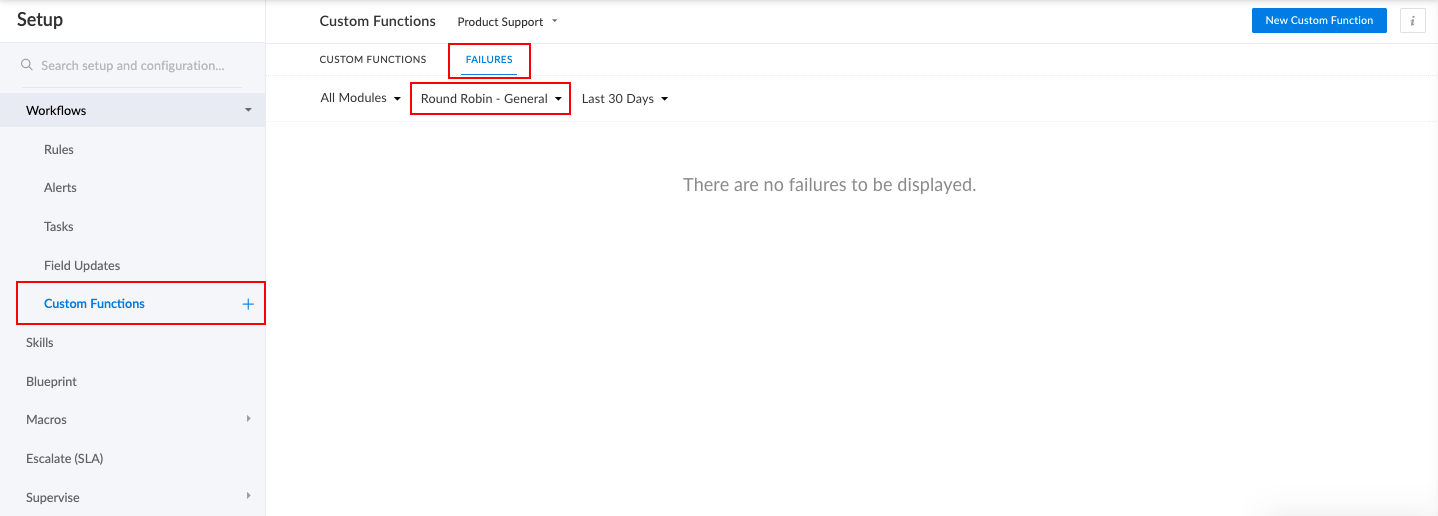
– If there is no failures found then go to Contacts > Round robin > edit the contact >and check the agent list if there is any repetition or comma missed or extra space added.
– If there is failure logs, contacts Zoho and share the ticket details and also the logs.
– If all seems fine and still not working, then contact Zoho and inform the issue.
– If all seems fine and still not working, then contact Zoho and inform the issue.
4) What happens when Ticket is not assigned via TAM rule?
– Go to the respective ticket and check the history of the ticket. See if the assignment rule has been executed first. This helps us in understand if the rule has any issues or not.
– Go to the respective ticket and check the history of the ticket. See if the assignment rule has been executed first. This helps us in understand if the rule has any issues or not.
– Go to settings > assignment rule > see if the rule is active/ ON.
– If yes, edit the rule, check if the domain is listed right and resave.
– Also, check when the TAM ticket came in. Tickets coming during non business hours will not be executed.
– If the case is genuine, contact Zoho.
5) What to do when the duplication of tickets happens and goes in loop ?
– See the ticket and check the from, to and cc email addresses.
– do not close the ticket
– Merge all the tickets and soft close it.
5) What to do when the duplication of tickets happens and goes in loop ?
– See the ticket and check the from, to and cc email addresses.
– do not close the ticket
– Merge all the tickets and soft close it.
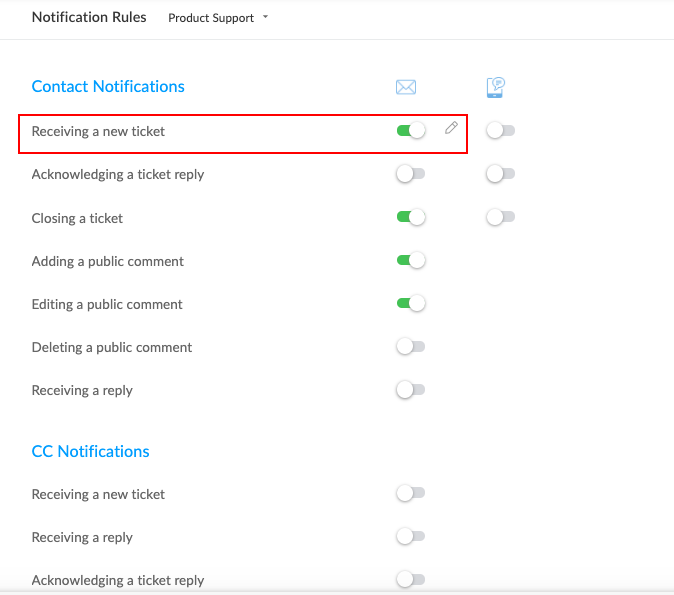
– if the issue is still not stopping. Disable the notify card for a minute and turn back on.
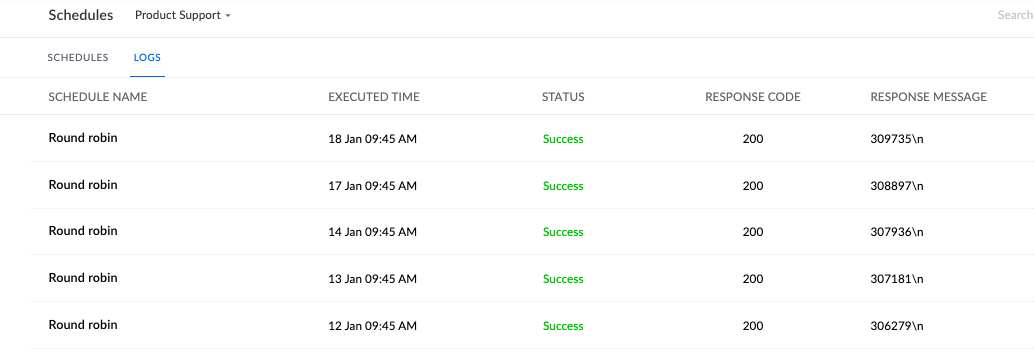
6) What if the non business hours tickets are not getting assigned ?
– Go to the settings > Automations > Scheduler > see when did the scheduler run successfully last
– Go to the settings > Automations > Scheduler > see when did the scheduler run successfully last
– Check if any failures
– still if issues, contact support.

7) What if Tags/ Priority/ Premium support is not added to a ticket ?
– Go to the respective ticket and check the history of the ticket. See if the assignment rule has been executed first. This helps us in understand if the rule has any issues or not.
– Once done, go to settings> workflow rules > custom functions > see if there is any error logs.
– Once done, go to settings> workflow rules > custom functions > see if there is any error logs.
– If logs are available, report to Zoho.
– If not edit the respective rule, check if the domain is added in the code.
– still if persists, contact Zoho.
Links for the KT sessions:
session 1 – https://myleadsquared-my.sharepoint.com/:v:/g/personal/mubeen_leadsquared_com/EdyUVr8o42NDjl2h7FDmt7wByGBs-dou9og4xzSN6KrHmw
session 1 – https://myleadsquared-my.sharepoint.com/:v:/g/personal/mubeen_leadsquared_com/EdyUVr8o42NDjl2h7FDmt7wByGBs-dou9og4xzSN6KrHmw
session 2 – https://myleadsquared-my.sharepoint.com/:v:/g/personal/mubeen_leadsquared_com/EdyUVr8o42NDjl2h7FDmt7wByGBs-dou9og4xzSN6KrHmw
session 3 – https://myleadsquared-my.sharepoint.com/:v:/g/personal/mubeen_leadsquared_com/EVAlb3-aJWxGnayriTIPV-ABv-8kmNU9GI7R82A3AI2-JQ
session 3 – https://myleadsquared-my.sharepoint.com/:v:/g/personal/mubeen_leadsquared_com/EVAlb3-aJWxGnayriTIPV-ABv-8kmNU9GI7R82A3AI2-JQ


